
Your WhatsApp workspace
Build the next reply. Then the next step.
Use a visual canvas to answer routine questions, collect details, connect tools and hand over to a person.
GrowthProAccount & setup requirements apply
A useful next step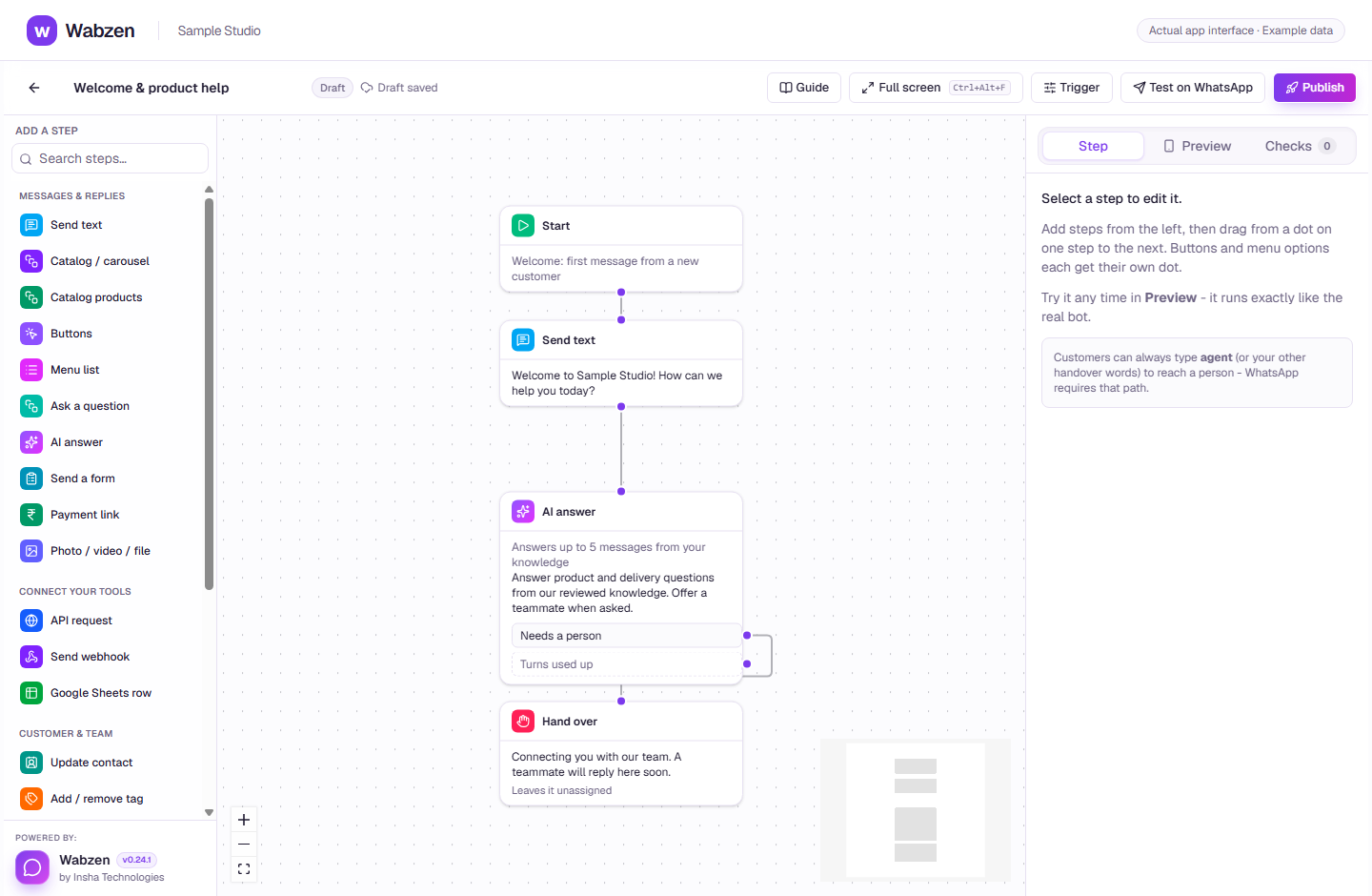
The visual builder where message, AI, form and integration steps connect. Actual app interface with example data. Explore the walkthrough
What your team can do
Start with a welcome menu, FAQ menu or away message.
Connect questions, buttons, conditions and customer updates.
Use API requests, webhooks and connected Sheets.
Publish a version, preview the journey and keep a human handover path.
How it works
A clear path from setup to action.
01
Pick a starting point
Use a ready-made starter or begin with a blank canvas.
02
Connect the journey
Add replies and questions, then connect conditions and handover paths.
03
Test, then publish
Check the draft in the phone preview before publishing. A real WhatsApp test can incur message charges.
Your questions
Good to know before you start.
Will editing a draft change my live chatbot?+
Draft edits stay separate until you publish a new version.
Can a teammate take over?+
Yes. A handover gives control to the team, and an agent reply stops automation for that conversation.
Bring your next conversation here.
Start with your own WhatsApp Business account and a plan that fits your team.